

It is your Personal Computer (PC) for a reason, and that is why the settings of your Windows 10 and theme-look need to suit your personal taste.
We will take you through how to get your desired background theme with few clicks on your Windows 10 computer.
For starters, a theme is an outlook of your PC and/or Laptop. It determines what you see on the home screen when you power your system and likewise control the colours of your icons borders.
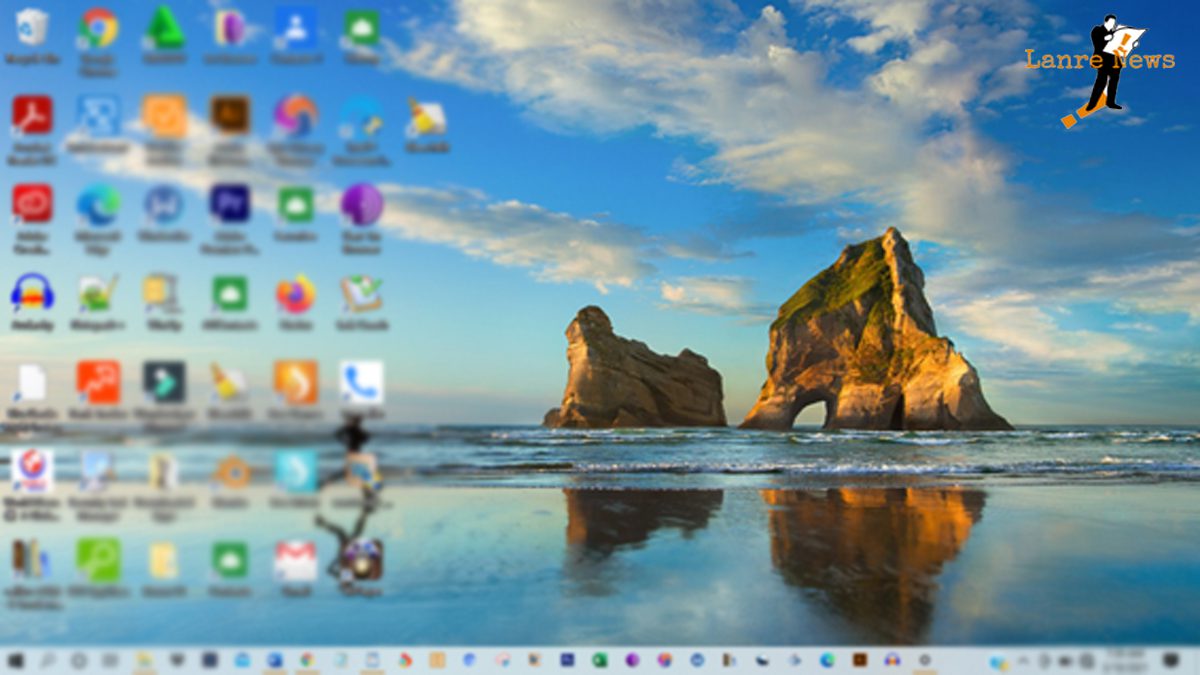
Below are screenshot samples:

For the above screenshot, observe the Window Logo picture in the background and the colour of the lower border.

You can see the background picture which was originally a Window Logo has changed to a sea view in the above screenshot (you may scroll to recheck).

The above screenshot also has a different appearance of its own.
All of the shared screenshots are screens of the same Laptop. I only changed the theme.
How to change/customise the background and theme of a PC and Laptop:
- Go to Home Screen
- Right-click and select PERSONALIZED
- Select Theme
- Select your preferred theme
- Customize
1. Go to Home Screen
There are two ways to go back to the home screen in case you already have some programs running on your computer.
- You can minimize all screens individually. This can be done by hovering your mouse on the X icon on the program and click. Do this for all the opened programs, until all has been minimized. You should be left with the home screen.

- A faster method I prefer is using the keyboard shortcut Windows Logo key + M. This will instantly minimize all the opened programs and take you to the home screen.
2. Right-click and select PERSONALIZED
There are two buttons on your mouse pad or mouse device (depending on configuration). By default, the right-click should prompt as in the screenshot below:

3. Select Theme
From the list options in the right column, select Themes

4. Select your preferred theme
You should now be able to see your current theme and other installed theme to select from.

5. Customize
Select your preferred theme and play around with the customization option to adjust to your taste.

MORE CONTENTS:
- Plugins To Make Your WordPress Site Multilingual
- How to Reduce Your Nigerian Site Image Size for Fast Loading Using Plugins
Lanre News | Latest News in Nigeria | Africa | Around the World.
Freelance Writers and Employers, visit our sister site [www.lanrewriter.com] to connect.







Leave a Reply